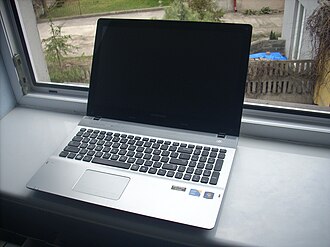
A laptop is an essential part of everyday life, whether you use it for work, studying, gaming, or entertainment. However, like any electronic device, it requires regular care to maintain its performance and reliability. Dust buildup, overheating, outdated software, poor battery habits, and accidental damage can shorten a laptop’s lifespan if left unchecked.
The good news is that you do not need advanced technical skills to keep your laptop in excellent condition. With a few simple maintenance habits, you can improve performance, protect your data, and potentially extend the life of your device for several years.
In this guide, we will explore practical laptop maintenance tips that help you keep your computer running smoothly for longer.
1. Keep Your Laptop Clean
Dust, dirt, and debris are among the most common causes of laptop maintenance problems. Over time, dust can accumulate around the keyboard, ventilation openings, fans, and other components. This buildup may restrict airflow and contribute to overheating.
To keep your laptop clean, wipe the exterior with a soft, lint-free microfiber cloth. Use a suitable electronics-safe cleaning method for the screen and avoid spraying liquids directly onto the device. For the keyboard, use short bursts of compressed air when appropriate, following the manufacturer’s instructions.
Before cleaning, shut down the laptop and disconnect the charger. Never use excessive moisture, abrasive materials, or household cleaning products that could damage the screen or protective coatings.
Maintenance tip: Clean the exterior and keyboard every one or two weeks, or more frequently if you use your laptop in a dusty environment.
2. Prevent Overheating
Heat is one of the biggest enemies of electronic components. When a laptop becomes too hot, it may slow down automatically, become noisy, or shut down unexpectedly. Prolonged exposure to excessive temperatures can also contribute to component wear.
Always place your laptop on a hard, flat surface that allows air to circulate freely. Avoid using it on blankets, pillows, beds, or other soft surfaces that can block ventilation openings.
If you regularly perform demanding tasks such as video editing, gaming, or running multiple applications, make sure your laptop has adequate airflow. A cooling pad may help in some situations, but it cannot compensate for blocked vents or a malfunctioning cooling system.
If your laptop consistently overheats, its fans make unusual noises, or its performance drops significantly under normal workloads, consider having the cooling system inspected by a qualified technician.
Maintenance tip: Keep ventilation openings clear and avoid exposing your laptop to direct sunlight or hot environments for extended periods.
3. Take Care of Your Laptop Battery
Laptop batteries gradually lose capacity as they age. Although battery degradation is unavoidable, proper charging habits and temperature management can help preserve battery health.
Many modern laptops use lithium-ion or lithium-polymer batteries. These batteries generally benefit from avoiding excessive heat and prolonged periods at very high or very low charge levels.
If your laptop offers a battery conservation feature, consider enabling it when you usually work near a power outlet. Depending on the manufacturer, this feature may limit charging to around 80% or another selected level.
You should also avoid allowing your battery to remain completely discharged for long periods. If you plan to store your laptop for several weeks or months, follow the manufacturer’s recommended storage charge and temperature guidelines.
Keep in mind that leaving a modern laptop plugged in is not automatically harmful. Charging management features help regulate the battery, although prolonged exposure to heat can still affect its lifespan.
Maintenance tip: Avoid excessive heat, use built-in battery protection settings when available, and check battery health periodically.
4. Keep Your Operating System and Software Updated
Software maintenance is just as important as physical care. Operating system updates often include security patches, bug fixes, driver improvements, and performance enhancements.
Running outdated software can expose your laptop to security vulnerabilities and compatibility issues. Regular updates help keep your system stable and protected.
Enable automatic updates for your operating system and keep essential applications updated as well. Install drivers and firmware updates through trusted manufacturer tools or official support websites.
However, avoid downloading drivers from unfamiliar websites or installing unnecessary optimization programs that promise dramatic performance improvements.
Before installing major operating system updates, back up important files and ensure you have enough free storage space.
Maintenance tip: Check for updates regularly and restart your laptop when required to complete installations.
5. Manage Storage Space
A nearly full storage drive can make everyday tasks more difficult. Your laptop may take longer to start, applications may run less smoothly, and major updates may fail because there is insufficient free space.
Start by removing applications you no longer use. Delete unnecessary downloads, clear temporary files using built-in system tools, and empty the recycle bin or trash when appropriate.
Large files such as videos, old installers, and duplicate documents can also consume significant storage space. Move files you rarely access to an external drive or a trusted cloud storage service.
Try to maintain a reasonable amount of free space on your system drive. The ideal amount depends on your drive capacity and workload, but keeping roughly 10–20% free can be a useful general target for many users.
If your laptop still uses a traditional hard disk drive, an upgrade to a compatible solid-state drive (SSD) may significantly improve boot times and application responsiveness.
Maintenance tip: Review your storage usage every month and remove files you no longer need.
6. Protect Your Laptop From Malware
Malware can slow down your laptop, compromise personal information, and cause serious security problems. Good security practices are therefore an essential part of long-term laptop maintenance.
Use a reputable antivirus solution or the security features built into your operating system. Keep your firewall enabled and install software only from trusted sources.
Be cautious when opening email attachments, clicking unfamiliar links, or downloading files from unknown websites. Avoid pirated software because it can expose your device to malware and other threats.
Use strong, unique passwords and enable multifactor authentication for important accounts whenever possible.
If your laptop suddenly becomes unusually slow, displays unexpected pop-ups, or behaves strangely, investigate the cause instead of immediately installing random cleanup tools.
Maintenance tip: Keep security protection enabled, update your software, and run security scans when appropriate.
7. Handle Your Laptop With Care
Physical damage can be expensive to repair and may shorten your laptop’s useful life. Even a well-maintained computer can fail if it is dropped, exposed to liquids, or transported carelessly.
Always carry your laptop in a padded bag or protective sleeve. Avoid placing heavy objects on top of it, and never lift the device by its screen.
Open and close the lid gently, holding the base when possible. Do not pull the power cable abruptly or force connectors into ports.
Keep drinks away from your laptop to reduce the risk of liquid spills. If a spill occurs, disconnect power if it is safe to do so, shut the device down, and seek appropriate professional advice. Do not continue powering it on to test whether it works.
Maintenance tip: Use a protective case when traveling and keep your laptop away from liquids, extreme temperatures, and accidental impacts.
8. Back Up Your Important Data
Laptop maintenance is not only about preserving hardware. Protecting your files is equally important because storage devices can fail without warning.
A backup ensures that you can recover important documents, photographs, work projects, and other personal files if your laptop becomes damaged, is stolen, or stops working.
You can back up your data to an external hard drive, an external SSD, or a reputable cloud storage service. For important information, consider keeping more than one backup copy.
A useful approach is to automate backups so that you do not have to remember to perform them manually. Periodically check that your backup files are accessible and that your backup process is completing successfully.
Remember that synchronizing files with a cloud service is not always the same as maintaining a separate backup. Accidental deletions or unwanted changes may also synchronize across devices.
Maintenance tip: Schedule automatic backups and test your ability to restore important files.
9. Reduce Unnecessary Startup Programs
If your laptop takes a long time to start, too many applications launching automatically may be part of the problem.
Many programs enable startup services during installation. Although some are necessary, others may run in the background without providing immediate value.
Open your operating system’s startup-app settings and review which programs launch when you sign in. Disable unnecessary startup applications, but leave essential security tools and system components enabled.
You can also close applications you are no longer using and restart your laptop occasionally if it has been running for an extended period.
Avoid installing multiple programs that perform the same optimization or security functions, as they may consume additional system resources.
Maintenance tip: Review startup applications every few months and disable only those you recognize and do not need.
10. Maintain Your Laptop’s Cooling System
Cleaning the exterior helps, but internal dust can eventually accumulate around the cooling fans and heat sinks.
When airflow becomes restricted, the laptop may run hotter and louder than usual. In some cases, an aging fan or degraded thermal interface material may also contribute to cooling problems.
The frequency of internal cleaning depends on your laptop model, environment, and usage. A device used daily in a dusty room may need attention sooner than one used occasionally in a clean office.
If you are experienced with electronics and your manufacturer permits user servicing, you may be able to clean internal components according to the official maintenance instructions. Otherwise, professional servicing is the safer choice.
Opening a laptop without the right tools or knowledge can damage connectors, fans, or the battery. Never puncture, bend, or mishandle a lithium battery.
Maintenance tip: Arrange internal cleaning when necessary, especially if temperatures rise, fans become unusually noisy, or ventilation appears restricted.
11. Keep Your Laptop’s Display and Keyboard in Good Condition
The screen and keyboard are among the most frequently used parts of a laptop, so careful handling can prevent unnecessary repairs.
Clean the display with a soft microfiber cloth and a cleaning product approved for your screen type. Avoid applying pressure to the panel, as excessive force can damage it.
For the keyboard, remove loose debris carefully and avoid eating over the device whenever possible. If a key becomes sticky or stops responding, do not force it off unless the manufacturer provides safe removal instructions for that particular keyboard.
You can also use an external keyboard and mouse when working at a desk for long periods. This may reduce wear on built-in components and improve comfort.
Maintenance tip: Clean gently, avoid pressure on the screen, and keep food and drinks away from the keyboard.
12. Upgrade Your Laptop When Necessary
Sometimes, maintenance alone cannot keep an older laptop feeling fast. Fortunately, a suitable hardware upgrade may extend its useful life without requiring you to buy a new computer.
Depending on the model, adding RAM can improve multitasking, while replacing an older hard disk drive with an SSD can make the system feel considerably more responsive.
Before purchasing components, check whether your laptop supports the upgrade. Some modern laptops have memory or storage permanently soldered to the motherboard, limiting your options.
You should also consider the cost of upgrades compared with the laptop’s age, condition, and remaining software support. If the motherboard, display, or several major components require expensive repairs, replacing the device may be more practical.
Maintenance tip: Identify performance bottlenecks before upgrading, and choose compatible parts from reliable suppliers.
13. Develop a Simple Laptop Maintenance Routine
You do not need to spend hours maintaining your laptop. A consistent routine can help you identify small problems before they become serious.
Here is a practical schedule you can follow.
| Frequency | Maintenance task |
|---|---|
| Daily | Use your laptop on a stable surface and avoid overheating |
| Weekly | Wipe the exterior and keyboard, and close unnecessary applications |
| Monthly | Review storage space, check for updates, and inspect battery health |
| Every few months | Review startup programs, verify backups, and check ventilation |
| When necessary | Clean internal cooling components or arrange professional servicing |
| Annually | Review overall condition, battery performance, and potential upgrade needs |
This schedule is a starting point rather than a strict rule. Adjust it according to your laptop’s manufacturer recommendations, environment, and usage.
Common Laptop Maintenance Mistakes to Avoid
Even people who take good care of their devices can make mistakes that shorten their laptop’s lifespan.
Here are some common habits to avoid:
- Blocking ventilation: Using your laptop on soft surfaces can restrict airflow and increase temperatures.
- Ignoring warning signs: Unusual noises, repeated shutdowns, swollen batteries, and persistent overheating should not be ignored.
- Skipping backups: Important files may be lost if a drive fails unexpectedly.
- Using unsuitable cleaning products: Harsh chemicals and excessive liquid can damage the screen and exterior.
- Installing unknown software: Untrusted applications may introduce malware or unwanted background processes.
- Forcing hardware upgrades: Incompatible components or careless installation can cause damage.
- Ignoring software support: Continuing to use an operating system that no longer receives security updates can increase security risks.
Avoiding these mistakes can make everyday laptop use safer and more reliable.
How Long Can a Well-Maintained Laptop Last?
A laptop’s lifespan depends on its build quality, components, workload, environment, and repairability. Many laptops remain useful for around five to seven years, while some well-built models can last longer with appropriate maintenance and occasional upgrades.
However, physical longevity and practical usefulness are not always the same. A laptop may still turn on after many years but struggle with modern applications or no longer receive important security updates.
Battery degradation, limited memory, insufficient storage, and unsupported software can all affect whether an older device remains suitable for everyday use.
The goal of maintenance is not simply to keep a laptop powered on for as long as possible. It is to keep the device safe, reliable, responsive, and useful throughout its service life.
Conclusion
Keeping your laptop running for years does not require complicated procedures or expensive equipment. Regular cleaning, sensible battery care, effective cooling, software updates, storage management, and reliable backups can make a significant difference.
Equally important is recognizing when a problem needs professional attention. Persistent overheating, unusual fan noises, liquid damage, and battery swelling should never be ignored.
By developing a simple maintenance routine and handling your laptop carefully, you can reduce avoidable problems, protect your data, and get more value from your investment.
Start with a few small habits today, and your laptop will have a better chance of serving you reliably for years to come.